Our approach: This article is based on published product information and use-case analysis. We have not conducted hands-on testing for this article.
TechGearPilot may earn a commission from qualifying purchases made through links on the site, at no extra cost to you. How our links work.
Buy for coverage and port requirements before headline Wi-Fi speed. Choose mesh for placement problems and multi-gigabit hardware for a real multi-gigabit workload.
A router purchase should begin with the shape of your home, not the largest number printed on a box. One centrally placed router may serve an apartment well. A long house with thick interior walls may need additional access points. A multi-gigabit internet plan can be constrained by a single gigabit port regardless of a router’s wireless branding.
This guide shortlists three approaches: a conventional Wi-Fi 6 router, a manageable Wi-Fi 6 mesh system, and a Wi-Fi 7 router with faster wired connections. The recommendations use published specifications and practical network design considerations. We have not measured their throughput, latency, or room-by-room coverage.
Quick picks by home and workload
| Situation | Candidate | Why consider it | Main condition |
|---|---|---|---|
| Compact home and a plan at or below gigabit | TP-Link Archer AX55 | Conventional router layout and several wired ports | Confirm hardware revision and support before buying |
| Multiple rooms needing distributed coverage | eero 6+ system | App-managed mesh and wired-backhaul options | Plan node locations and accept app-based management |
| Compatible new devices and multi-gigabit wiring | TP-Link Archer BE550 | Wi-Fi 7, 6 GHz, and 2.5 GbE ports | The rest of the network must justify the extra capability |
These are starting points for distinct needs, not winners from a comparative speed test. If your existing network works reliably, an upgrade may offer little everyday benefit. Start with our home Wi-Fi troubleshooting guide before replacing equipment to fix one weak room.
Who this guide is for
This is for households choosing their own network equipment for browsing, streaming, work, gaming, and smart-home devices. It assumes you have, or will retain, the modem or optical-network equipment required by your internet provider. A standalone router is not automatically a replacement for that equipment.
If your service includes phone or television functions through a provider gateway, confirm compatibility and the provider’s recommended setup. Business environments with managed access points, complex VLAN requirements, or contractual uptime needs deserve a more specialized design than a consumer shopping list.
TP-Link Archer AX55: a conditional conventional-router choice
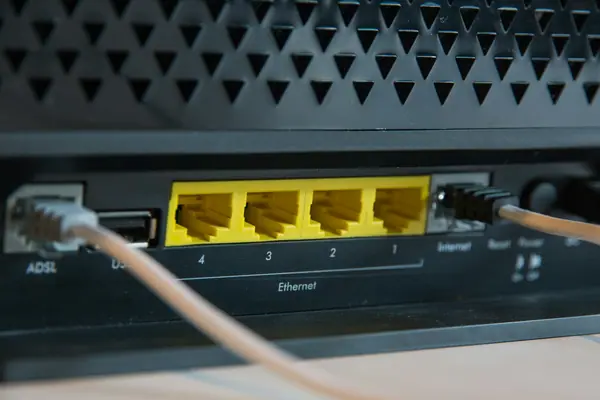
The Archer AX55 offers dual-band Wi-Fi 6, a gigabit WAN connection, four gigabit LAN connections, and USB 3.0. This is a practical configuration for a modest wired desk setup plus ordinary wireless devices. Its published AX3000 class is an aggregate radio designation; it is not a promise of a 3 Gbps download to one laptop. AX55 specifications.
Our recommendation depends on the exact revision. The US download page distinguishes hardware versions, and TP-Link’s end-of-life information explains why version matters. Do not assume every box carrying the AX55 name has an identical software future. Ask the seller for the version before ordering old stock.
Pros: several Ethernet connections for stationary devices; a familiar single-router setup; no need to pay for 6 GHz if your equipment cannot use it. Cons: gigabit ports cap faster wired paths; no 6 GHz radio; support and mesh details require revision-specific verification.
Best for: a buyer with a compact home, conventional broadband needs, and a verified supported unit at a sensible price. Skip it if: you cannot confirm the revision, want multi-gigabit wired connections, or already know one access point cannot cover the house. See the AX55 review for the detailed caveats.
eero 6+: for distributed coverage with simple management
eero describes the 6+ as a dual-band Wi-Fi 6 device with two auto-sensing gigabit Ethernet ports and app-based setup. Units can serve as a primary router or part of an eero mesh. eero hardware information.
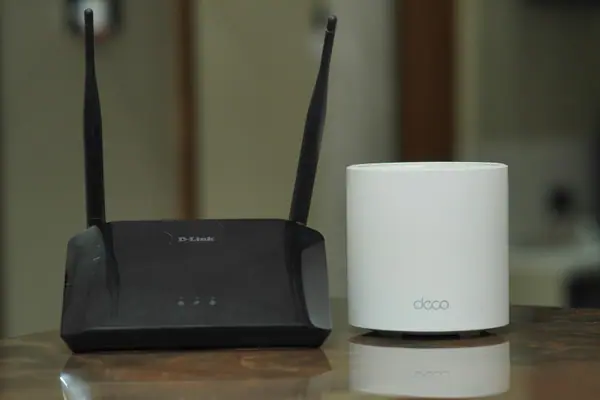
The reason to buy a system is placement flexibility. Instead of expecting one router in a utility room to reach every bedroom, you can put access points nearer the rooms that matter. Wired backhaul is especially worth considering when Ethernet is already available: it gives the nodes a wired path to the network rather than relying entirely on wireless links.
Pros: an approach suited to spreading coverage; centralized app management; the ability to use available Ethernet. Cons: only two ports per unit; gigabit rather than multi-gigabit wired capability; buyers who want extensive manual controls should examine management options carefully. Paid services are separate from the hardware decision and should be evaluated on their actual features and current terms.
Best for: a household comfortable managing Wi-Fi by phone and willing to plan where nodes go. Skip it if: you need faster-than-gigabit wired connections, extensive manual tuning, or a system that avoids an app-centered workflow. Do not buy more nodes simply because a bundle is discounted.
TP-Link Archer BE550: for a network ready to use Wi-Fi 7
The BE550 combines 2.4, 5, and 6 GHz radios with one 2.5 Gbps WAN port and four 2.5 Gbps LAN ports. TP-Link documents Wi-Fi 7 features including MLO and 320 MHz channels, subject to compatible clients and other conditions. BE550 specifications.
The practical attraction is the whole path. A faster broadband plan can enter through a multi-gigabit WAN connection, while compatible wired computers or storage devices can use faster LAN ports. The wireless benefits depend on compatible client hardware, software, location, and interference. A Wi-Fi 6 phone does not acquire Wi-Fi 7 capabilities when you install a new router.
Pros: 6 GHz support; faster wired ports throughout; a feature set relevant to newer clients. Cons: increased capability may go unused; one device still may not cover a difficult floor plan; optional services and version-specific support need checking.
Best for: a buyer building around compatible new laptops, local storage transfers, or multi-gigabit broadband. Skip it if: your main problem is distance through thick walls or your current devices and service cannot use the extra capacity. Our Wi-Fi 6 versus Wi-Fi 7 comparison helps separate meaningful upgrades from theoretical ones.
Coverage, mesh, and where the router will live
Write down the locations where reliability matters: a work desk, living-room television, bedroom, and any smart-home camera. Then locate your internet entry point. If the two are far apart, an Ethernet run or distributed access points may be more valuable than a faster central router.
Wireless mesh nodes need a good path back to the network. Putting a satellite inside the existing dead zone can simply give it the same weak upstream connection. eero’s placement guidance recommends considering intermediate locations, obstacles, and wired connections where practical.
Do not treat a square-foot coverage number as a guarantee. Building materials, neighboring networks, doors, and floor layout all matter. Keep equipment accessible and ventilated; a hidden router may satisfy a decorating preference while undermining the reason you bought it.
How to judge price and long-term value
Set a budget for the complete network, including any switch, cables, and additional nodes. Someone who needs six wired connections may need an Ethernet switch even if the router itself seems inexpensive. Someone buying mesh may need fewer units when an existing cable can place one access point effectively.
Check current firmware information before you buy, not only after installation. Distinguish security updates from optional subscription services. A paid protection package does not replace keeping the router’s own software current, and a recent update is not a promise of indefinite support.
Avoid paying for the same capability twice. If your provider gateway already handles routing and you only need better wireless coverage, investigate an appropriate access-point configuration. Follow the provider and equipment documentation so that a second router does not create an unwanted additional routing layer.
Buying questions answered
Should I choose Wi-Fi 7 for gaming?
Only after checking the actual bottleneck. A wired connection to a stationary gaming device is worth considering first. Router generation alone cannot remove internet-path latency, server delay, or congestion elsewhere in the connection.
Is more wireless bandwidth always useful?
No. A wider channel requires compatible clients and suitable conditions. Usable capacity in a crowded environment matters more than selecting the widest possible setting simply because it appears in a menu.
Can I keep my old router?
Yes, if it still meets your coverage and capacity needs and has an acceptable support situation. Troubleshoot placement and configuration first. Replacement makes sense when you identify a limitation that new hardware can actually address.
Final buying direction
Choose a verified-revision AX55 for an appropriate conventional network, investigate eero 6+ when distributing coverage solves the problem, and consider the BE550 when faster ports and compatible Wi-Fi 7 devices make the extra capability useful. Keep the floor plan and support history in the decision. The best router is the one that fits the network you have to operate.
Reader questions
Does a Wi-Fi 7 router make every device use Wi-Fi 7?
No. Each device uses capabilities shared with the router. Older devices do not gain a new radio standard through a router upgrade.
Is mesh always better than one router?
No. A well-positioned single router can be appropriate for a compact home. Mesh helps distribute access points, but wireless nodes still need a good connection to the rest of the network.
What should I verify before buying an Archer AX55?
Verify the exact US hardware version, its current support status, and its firmware page. Some older revisions appear on TP-Link's end-of-life list, so the model name alone is insufficient.
Explore the options discussed
Check the exact model, compatibility and current availability with the manufacturer before purchasing.
TP-Link Archer AX55
A conventional home network after checking the hardware revision
View Product DetailsTP-Link Archer BE550
Compatible newer wireless devices
View Product Detailseero 6+
App-managed distributed home coverage
View Product DetailsSources & further reading
Product information checked September 18, 2026. Specifications and availability can change.